Release 2026.07
As of June 30, 2026, all customers of the Procurios Platform will use release 2026.07. In this blog you can read what is new and what has been improved.
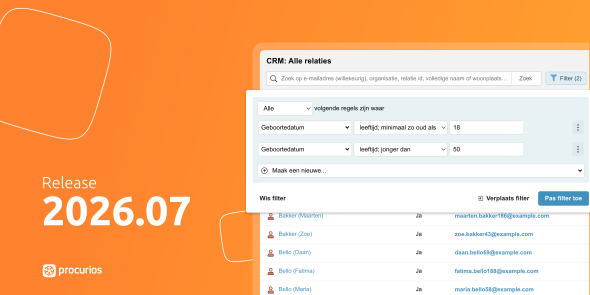
CRM: filter by age
When managing your member database, you often want to select members based on age. Think of a youth division for members under eighteen, or a campaign specifically for seniors. Without a direct age filter, this required a workaround.
You can now search date fields in the CRM using two new options:
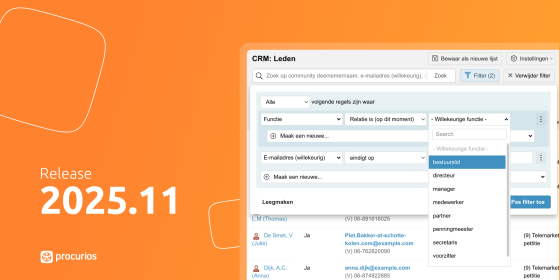
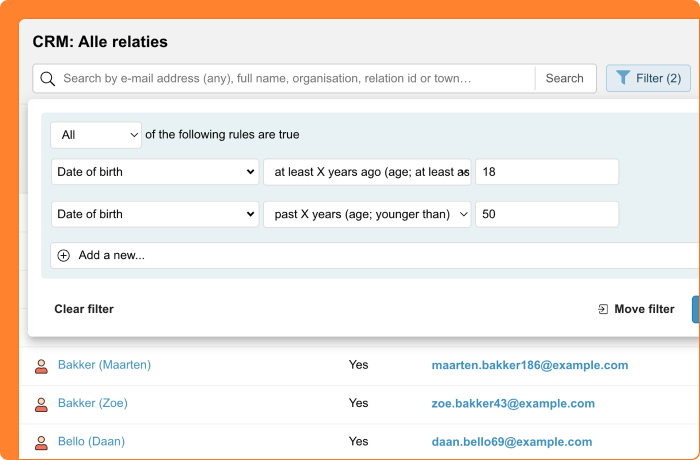
- 'last X years (age; younger than)': this returns all relations whose date is less than X years ago. For the 'date of birth' field, that means all relations younger than X years.
- 'at least X years ago (age; at least this old)': this returns all relations whose date is at least X years ago. For the 'date of birth' field, that means all relations who are at least X years old.
By combining the two options, you can easily define an age category. If you set one option to eighteen years and the other to twelve years on the 'date of birth' field, you'll find all relations who are at least twelve and not yet eighteen years old.
The new options work for all date fields in the CRM. You can use them beyond age-based searches too, for example to filter on the start date of an event.
Donations/CMS: route donations to the right fund via URL
When managing donations for multiple chapters or projects, your organization may run into a practical challenge. You want donations to automatically go to the right chapter's fund, but creating a separate donation form for each fund takes a lot of time and effort.
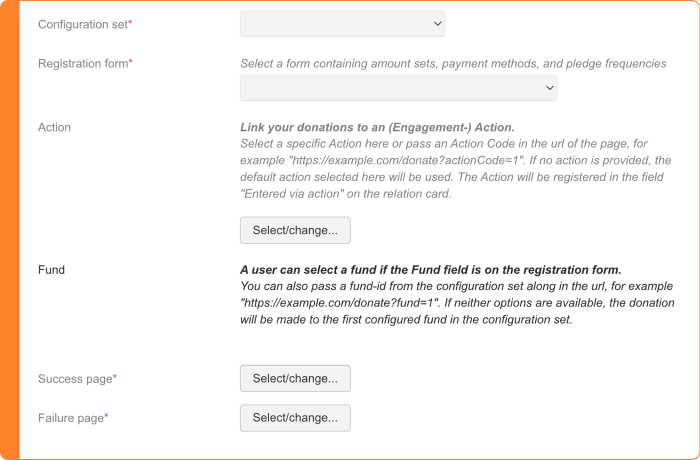
You can now include a fund ID in the URL when linking to a donation form, using the '?fund=' parameter followed by the fund's ID. For example: 'https://example.com/donate?fund=1'. This automatically routes the donation to the correct fund, without your donors having to make a choice. You can create a unique URL for each chapter that points to the same form, while still automatically directing the donation to the right fund.
If you don't include a fund ID in the URL, the form works exactly as before. If the form includes a fund dropdown, your donors will still see it. If there's no dropdown, the top fund in the form's configuration is selected automatically.
Please note: the fund you include in the URL must be available in the form's configuration. It's not possible to route a donation to a fund that is not part of that configuration via the URL.
Finance: add a customer reference to invoices
When managing your organization's invoicing, you may run into situations where business relations require a customer reference on their invoices. Without it, they cannot link the invoice internally to the right project or employee, making the payment process unnecessarily complicated.
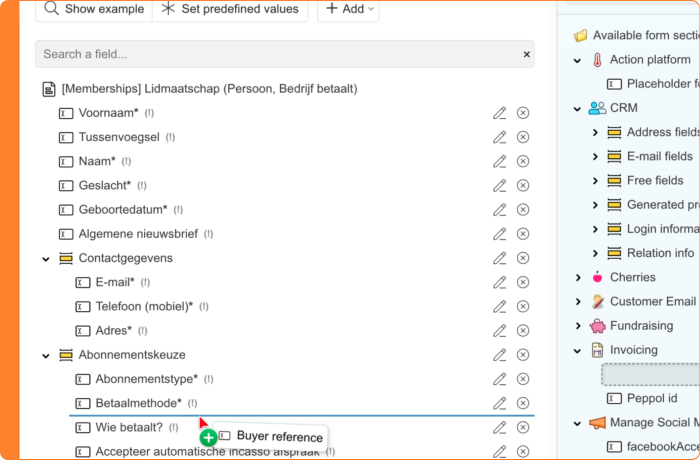
Order-specific references were already available per transaction. You can now also set a customer reference at the relation level. Add the 'Customer reference' field to your registration or profile form so your members or contacts fill it in once. The reference is stored at the debtor in billing. This means all transactions linked to that relation, whether a membership, order, or event, automatically reference the same customer reference.
In the invoice template, you can choose whether to display the customer reference. Want to use different wording? Customize the label under 'Own terms for invoices' to match your organization's terminology.
Using Peppol? The customer reference is included automatically with every invoice.
Memberships: see which payment invitation will be sent
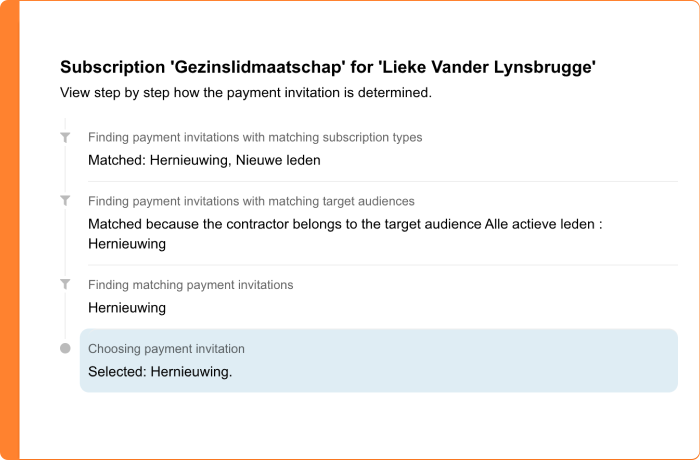
When setting up your payment invitations, you may run into a situation where multiple configurations apply to the same membership. For example, you have a separate configuration for the 'Family membership' type and a general configuration for all members. Which payment invitation does the platform send in that case? And how do you find out if something isn't right?
From now on, you can see step by step how the platform selects a payment invitation for each membership. There are two ways to access this:
- Go to the administration settings under 'Payment invitations' in Memberships and click the 'Explanation' button. Select a membership and you'll immediately see which invitation will be sent and which steps were followed to reach that selection.
- Open the list of renewable memberships under 'Payment invitations' and click the 'i' icon next to a membership. You'll see the same information for that specific membership.
If no matching payment invitation is found, you'll receive a notification, so you know right away that a configuration is missing and can add one.
Read more about payment invitations in the help center.
Other changes in this release
- Updated text editor: When managing content in the platform — whether it's a mailing, a blog post, or a registration form — you use the same text editor throughout. This editor has been updated to a newer version and looks slightly different from what you're used to. All features work the same way: formatting text, inserting images, and adding links all work just as before.
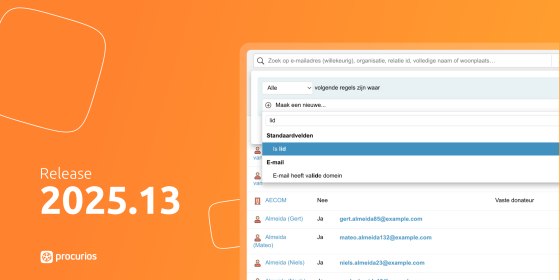
- Filter by invalid value: When filtering in the CRM, you can now also select 'contains an invalid value' for multi-select fields. An invalid value can occur, for example, when an option is removed from a multi-select field but was still assigned to a contact. Filtering on this lets you identify which contacts may have incomplete or outdated data.
- Sapphire – Year in event list: If an event falls in the next calendar year, the year will now be shown in the event list. Also check out the other changes in the Sapphire changelog.